8 Rules for Preparing Artwork Files
When getting your artwork ready, please follow these 8 rules to ensure the best printing results.

File Formats
Use the agreed production format, such as an editable AI file or a print-ready PDF.

Color Profiles
Use the agreed CMYK profile for process colors and separate any approved spot colors.


Detailed Artwork Guide
A step-by-step guide to help you prepare your artwork perfectly.
 File Format
What file formats do you accept?
Use the production format agreed with your project contact, typically an editable AI file or a print-ready PDF. Ask about EPS before export. For a first inquiry, a PDF or an image of your design is enough.
How do I save as a PDF file in Adobe Illustrator for print?
 When your artwork is finalized and is ready to be saved, navigate to your App menu: File > Save As...
 With the Save As... window open, specify the format as Adobe PDF (pdf)
 With the Save Adobe PDF window open, specify the Adobe PDF Preset as Press Quality and save.
Tip: Want to speed things up? After your artwork is finalized and is ready to be saved, use this shortcut to save your file:
Mac: Shift + Cmd + S
PC: Shift + Ctrl + S
Can I prepare packaging artwork without Adobe Illustrator?
Yes. Use a vector design program that can preserve the approved dieline and export a print-ready PDF. Keep cuts, creases, and finishing masks separate from printed artwork. Send the PDF for prepress review.
Which files can I attach to a website inquiry?
The inquiry form accepts one PDF, PNG, or JPG up to 5 MB. For a larger production file or editable artwork, send the inquiry first and arrange the file transfer with your project contact.
 Color Profiles
How do I change my document to CMYK color mode?
To change your document color mode, navigate to your App menu: File > Document Color Mode > CMYK Color
Important: While your entire document color mode has been converted into CMYK Color, any image assets must also be converted into CMYK for added precautions.
Important: While EcoCustomPack will try it’s best to match the gradient density of each color, EcoCustomPack is not liable for any discrepancies in the final color output. We recommend when reviewing your CTP to ensure everything is to your expectation before submitting your final production order.
Can I print using RGB color mode?
The RGB color space is commonly used exclusively for digital displays and is not recommended to be ever used for printing. Due to the nature of how printers process color information, CMYK or PMS colors are the only recommended color spaces for printing.
Learn more about the RGB color model and why its not used for printing.
Why should I print in 100% K value?
When printing black elements of design such as text, using the CMYK color mode, the K (Black) ink in printers provides a more accurate color output.
Tip: Due to the variance of black when using the CMYK color space, we recommend to speak with our product specialists to specify the type of black you would like to use on your packaging.
 Text
What's the minimum font size?
The minimum font size for legibility varies depending on the material and printing princess of your packaging. However, the safest recommended printable minimum size for fonts is generally 8pt and reverse print at 10pt.
Keep in mind that some typefaces haave thinner or lighter font weights, which may affect the print legibility.
- Dark text on light background: 6pt
- Light text on dark background: 8pt
If you’re unsure if your text will print out clear, consult with our product specialists before placing your order.
How do I ensure all texts are outlined?
Ensure all your artwork layers are unlocked, navigate to your App menu: Select > Object > All Text Objects
After all text objects are selected, navigate to your App menu: Type > Create Outlines
Tip: Want to speed things up? After you’ve selected all your text objects, use this shortcut to outline your selected texts:
Mac: Shift + Cmd + O
PC: Shift + Ctrl + O
 Additional Printing
Can I print using PMS Colors (Pantone® Matte & Metallic) and Spot UV?
Absolutely! We can print in all printable PMS (Pantone®) colors and Spot UV. However, you must ensure to add the necessary layers to your file to properly communicate which graphic elements will be using PMS or Spot UV. To ensure no mishaps during production, properly communicate with your product specialists as well.
How do I prepare files for additional printing options?
To properly communicate to your production team about any special options or printing (Pantone®, foil stamping, spot UV, etc.), additional file preparation is required to avoid any production issues. Please follow these steps closely to prevent any production delays and errors:
All other printing options should be indicated appropriately and separated into different layers.
For clarity, they should also be placed on a duplicate artboard in black (100% K value)
How do I prepare files for inside print?
If your packaging requires interior printing, please indicate properly on separate artboards “Inside Print” and “Outside Print”.
The interior and exterior artwork should also be placed in separate layers and properly named.
 Dielines
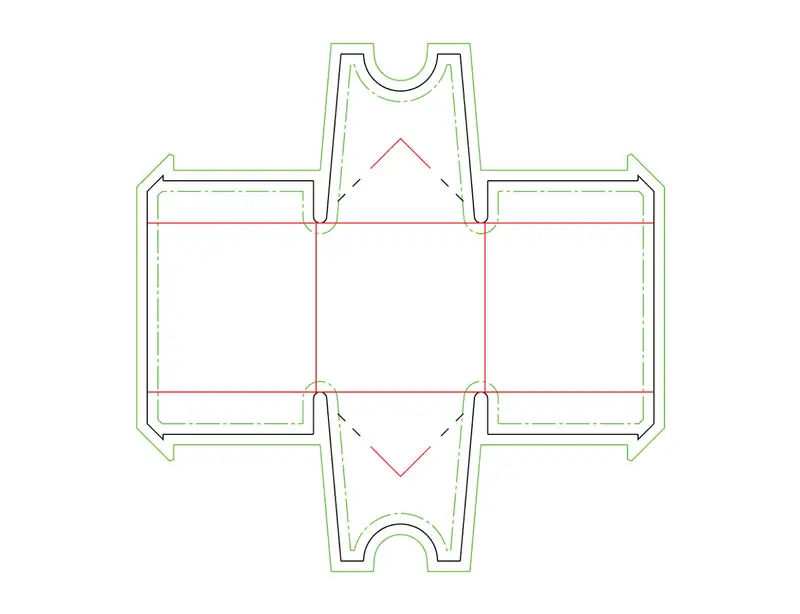
What does each color represent on a dieline?
Cut Line (Black Lines)
Indicates the cut at its final size. Important artwork and text should be placed at least 0.125” inside of cut line.
Crease Line (Red Lines)
Indicates where the packaging is being folded.
Bleed Line (Green Lines)
Indicates where the bleed lines are located. Any artwork which goes to the cutline should be extended to the bleed line for a seamless print.
Safety Margin (Dotted Green Lines)
Indicates where artwork and text should safely be placed inside. As an industry standard, all artwork should at least be placed 0.125” away from the cut line unless your design is intentional.
Perforation (Dotted Black Lines)
Perforation lines refers to paper that is punched with very small holes to allow for the paper to be torn and folded easily.
Can I make changes to the dielines?
Our dielines are carefully engineered using our proprietary software and are purposely created for use on our printing presses. Therefore, any altercations to the original can result in potential production errors. We strongly do not recommend any changes to your dielines and are not liable for any production errors caused by this.
Tip: For any changes to your dielines, please contact your product specialist.
Can I flatten the dieline layer with my artwork layer?
Please do not flatten the artwork and dieline layers. Our dielines are engineered using our proprietary software and are purposely created for used on our printing presses. To ensure that all printing and die-cutting functions are accurate in production, please avoid any altercations to the dieline.
 Lines
What's the minimum thickness for all strokes and thin lines?
All strokes and thin lines must be at least 0.25pt or 0.003” in thickness.
 Images
How do I embed all my images?
Ensuring that all your image assets are embedded into your saved file is vital to avoid any attachment issues of your files. When you do not correctly embed all your images, we may result in missing images needed to print your packaging.
To access all your linked images, navigate to your App menu: Window > Links
With the links panel open, multi-select all images, click on the sub-menu and select Embed Image(s)
How do I check the image properties in Adobe Illustrator?
All your images should be checked for correct image properties before sending your final file for print. In order to do this, follow these few steps:
To access all your linked images, navigate to your App menu: Window > Links
With the links panel open, select an image and click on the dropdown arrow to view the properties
How do I know if the image quality is 300 PPI
Ensuring your photographic-content (JPEG, PNG, GIF) is at least 150 - 300 PPI is crucial for printing with the highest clarity. Any PPI below 150 is not recommened for print, especially for larger format prints.
To access all your linked images, navigate to your App menu: Window > Links
With the links panel open, select an image and click on the dropdown arrow to view the properties
Check the PPI to be at least 150 - 300 PPI
How do I check if my images are in the CMYK color space?
All photographic content and other image assets must be converted into CMYK color space for accurate color printing.
To check your images for color space, navigate to your App menu: Window > Links
With the links panel open, select an image and click on the dropdown arrow to view the properties
Check color space for CMYK
 Graphics
Should I prepare my graphics in image or vector form?
All photographic content must be in the form of JPEG, PNG, or GIFs. Otherwise other artwork made in vector based platforms should stay as vectors (AI, PDF, EPS, SVG)
How do I know if the image quality is 300 PPI
Ensuring your photographic-content (JPEG, PNG, GIF) is at least 150 - 300 PPI is crucial for printing with the highest clarity. Any PPI below 150 is not recommened for print, especially for larger format prints.
To access all your linked images, navigate to your App menu: Window > Links
With the links panel open, select an image and click on the dropdown arrow to view the properties
Check the PPI to be at least 150 - 300 PPI
Before you place your artwork
Use the approved dieline for the box style, board, and dimensions you plan to order. Mark cutouts, windows, creases, and special finishes before placing critical artwork.
See the size guide and request a dieline